A crease behind the head
Smooth or replace the plain surface before the next shot. Keep the baby safely supported throughout. A wrinkle can cast a line that remains visible even when the material itself is white.
Background guide
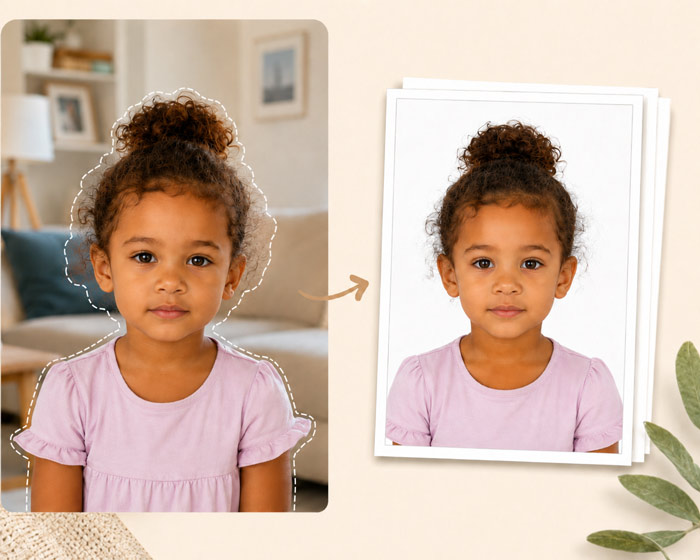
Start with the background color and editing rules for your application. Photographing against a suitable plain surface keeps an original file available when digital background replacement is restricted. A white-looking result alone does not establish acceptance.
Smooth or replace the plain surface before the next shot. Keep the baby safely supported throughout. A wrinkle can cast a line that remains visible even when the material itself is white.
Change the lighting and take another photograph. Replacing the area around the baby does not fix light falling unevenly across the face.
Compare the processed image with the original at full size. A cut-out edge can remove fine hair or leave a halo. Keep the original background when required, and retake if the original setup is unsuitable.
Check the US, UK or Canada photo guide for the application you are preparing. Background color, infant exceptions and photographer requirements are separate checks.
Use a simple light background with no pattern, logos, furniture, or visible room details.
Move the light source or the baby until dark edges around the head are reduced.
Hands, pillows, toys, and blanket edges should not remain in the final crop.
Choose the sharpest photo with the least clutter and least shadow.
Keep the face centered while removing unnecessary background area.
If the application restricts alteration, retake against the required surface. Use background replacement only when the receiving authority permits it.
Review the final file for shadows, edges, and country-specific size rules.
Related guides
If the background is hard to fix, retake the photo using a smoother sheet, softer light, and a cleaner frame.
A plain white or off-white background is the safest starting point for many passport and visa photo workflows.
A smooth plain white or off-white blanket can work, but patterned, wrinkled, or textured blankets often create problems.
Strong shadows on the face or background can cause rejection because they make the image less clear and less uniform.